01.01 · Comments / Learn · 4 min
Understand comments
One idea at a time: what a comment is, why it helps, and how to write one.
Activity 1 of 6 in Comments
JavaScript Basics / 01.01
Understand comments
Not started
Explore comments with six visual slides, annotated code, and Mac/Windows shortcuts.
Your lesson progress
Empty: not started. Yellow: in progress. Green: complete. Marking the whole activity complete does not replace your test results. These circles save in this browser for this pilot.
Write useful JavaScript comments
Work through 4 focused steps. Read the explanation, type each requested change and check it before moving on. Your own code carries forward.
The mini-lesson opens in a new tab. Your own code carries forward; each step has a focused check and an optional hint.
Start mini-lesson(opens in a new tab)4 steps · Saved work · Instant feedback
YOUR TURN
Try the examples on this page
Choose Load this code into the editor beside an example, then edit and Run code here. Predict what will print before running it. This is an exploration workspace, so there is no pass/fail challenge. Its saved work stays separate from the next practice activity.
Load an example, edit it and run it. Word wrap is enabled.
Your check results
Work in VS Code instead
Copy the starter into a file named practice.js in VS Code. If Node.js is installed, open the terminal in that folder and run node practice.js. Compare the output with the task above. Automated challenge checks are available in the browser editor.
// Welcome someone trying their first JavaScript program.
console.log("Hello, Code Zone!");Prefer reading? Open the lesson notes
A note the computer ignores
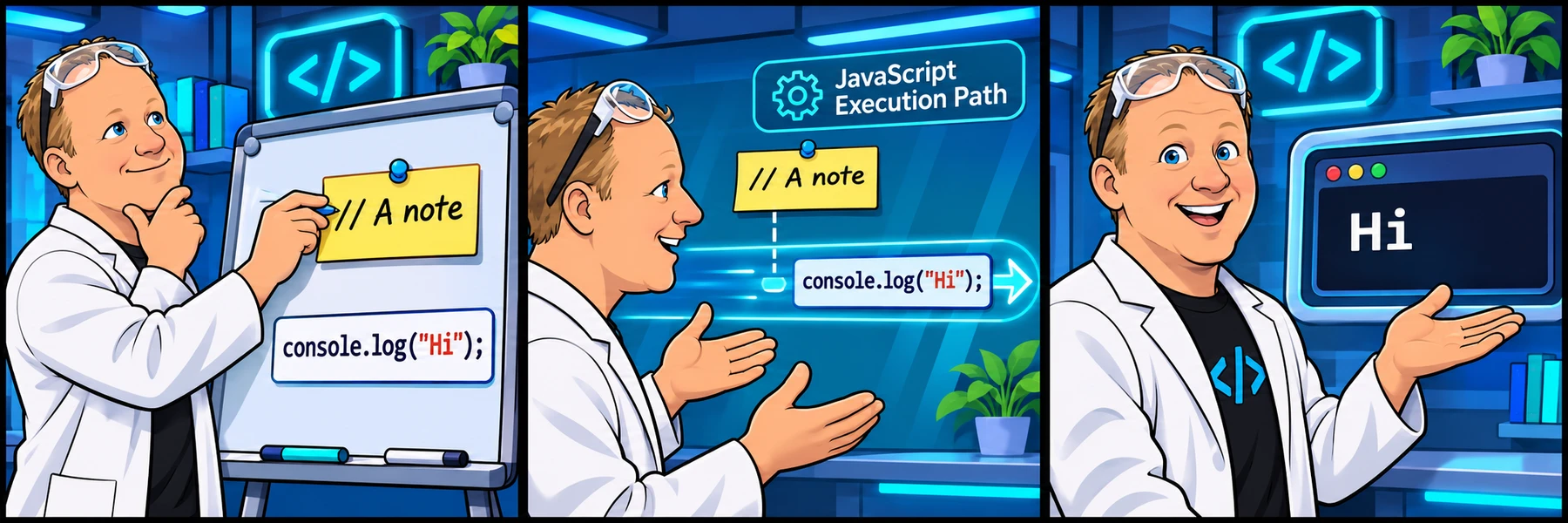
A comment is a note inside your code. JavaScript ignores it when the program runs. You can explain a decision, leave a reminder, or temporarily stop an instruction from running.
Two forward slashes start a single-line comment. In the example below, only the console.log instruction runs. console.log prints a message so you can see what your program is doing.
// Welcome someone trying their first JavaScript program.
console.log("Hello, Code Zone!");When your note needs more room
A block comment starts with /* and ends with */. It can span several lines. Everything between those markers is ignored.
/*
Keep this greeting friendly.
It is the first message a new learner will see.
*/
console.log("Welcome aboard!");Explain the reason
A useful comment explains something a reader would not immediately know. “Keep this message friendly for new learners” tells you more than “print a message.”
In VS Code, select a line and use Ctrl + / on Windows or Command + / on a Mac to toggle a line comment. A browser may handle shortcuts differently, so typing // also works.
Ready to try it?
Practice in your browser and see your results.
Progress details
Have a question?
Ask the Code Zone community.
Ask a question in The Code Zone (opens in a new tab)Continue learning

7 days freeTry The Code Zone
THE CODE ZONE COMMUNITY
Your next step is easier together.
Try the community free for 7 days.
No charge during your trial. Choose your plan on Skool.
- Ask questions and get support in the community
- Watch every course video walkthrough
- Find a study buddy in the 24/7 study room
Make the most of your trial with Premium.
Choose Premium on Skool to try Thursday live help sessions. Bring your questions, work through code, and get unstuck together.
Scheduled Thursdays in Eastern Time. Check the Skool calendar for your local date and time.
Have a website account? Sign in
THE VISUAL WALKTHROUGH
Comments, one idea at a time.
01What is a comment?
A note for a person reading your code.
A comment is text inside your program that JavaScript skips. People read the note; the computer runs the instructions around it.
// Keep the first greeting friendly.↳ A note for us. Skipped by JavaScript.console.log("Hello, Code Zone!");↳ An instruction. JavaScript runs this.✦ A comment stays in the code, but it does not appear in the output.
02Why leave one?
Leave the reason. Future you will thank you.
Code shows what happens. A useful comment can explain why you made a choice, leave a reminder, or temporarily turn off an instruction while you investigate.
A less useful note
// Print a message.Repeats what the instruction already says.A more useful note
// Keep this friendly for brand-new learners.Explains the reason for your choice.// Keep this friendly for brand-new learners.↳ The reason behind the choice.console.log("Welcome aboard!");✦ You do not need a comment on every line. Explain something that is not already obvious.
03Single-line comments
Two forward slashes. The rest of the line is a note.
Use // before a note. It can have its own line or sit after an instruction. The comment ends when that line ends.
// A note on its own line.↳ The whole line is a comment.console.log("Hello!"); // An inline note.↳ The instruction before // still runs.// console.log("DEBUG: checking things");↳ Commented-out code stays here, but does not run.✦ The marker must be outside a quoted string. Inside quotes, // is just part of the text.
04Block comments
Open with /*. Close with */.
A block comment is useful when your note needs more room. JavaScript skips everything between the opening and closing markers, even across several lines.
/*↳ Start the comment.This is the first message a learner sees.Keep it friendly and short.*/↳ End the comment.console.log("Welcome!");↳ Back to running instructions.✦ Always close the block with */. Block comments cannot be nested inside each other.
05The keyboard shortcut
Comment a line with two keys.
In VS Code, put your cursor anywhere on a line, then hold the modifier key and tap /. Select several lines first to toggle comments on the selection.
macOS
Command sits beside the space bar. The / key is beside right Shift.
Windows
Control sits at the bottom left. The / key is beside right Shift.
Hold Command or Control, tap /, then release. You do not need Shift for this shortcut on the layout shown. Click inside the live editor first so it receives the keys.
✦ Press the same shortcut again to uncomment. The / key shown is a common US keyboard layout; other layouts and custom keybindings may differ.
06See what changes
Same instruction. Different result.
Use the button to switch this example between running code and a comment. Notice what changes in the output. Then try it yourself in the live editor.
console.log("Hello, Code Zone!");Hello, Code Zone!
The instruction is running.
console.log("Hello, Code Zone!");
console.log("DEBUG: checking the welcome message");
Try the shortcut in practiceClick inside the JavaScript editor, place the cursor on the debug line, and use your shortcut. Then run the code.
✦ Commenting out a line keeps it available for later. It stops running until you uncomment it.
No autoplay. Go at your pace. Use the left and right arrow keys while a slide control is focused.